
Modernizing Banking Onboarding in Dynamics 365 CE with Embedded Canvas Apps
Financial institutions continuously balance regulatory compliance, operational efficiency, and user experience. In Dynamics 365 Customer Engagement (CE), recurring processes such as Know Your Customer (KYC) and Credit Checks are critical – but often too domain-specific to be fully covered by out-of-the-box functionality.
At Releye, we work closely with banks and financial service providers to design sector-specific extensions to Dynamics 365 CE. In this article, we share a practical, developer-focused approach to implementing KYC and Credit Check processes by embedding Canvas Apps directly into Model-Driven Forms – creating a seamless experience for users while maintaining a robust, scalable architecture. We feel that there is not enough documentation on this topic, hence this article.
This guide focuses on:
- Embedding Canvas Apps in Model-Driven Forms with form context
- Using this capability to support banking-specific onboarding processes
- Two use cases: KYC and Credit Check
PowerApps: How to Embed Canvas Apps in Model-Driven Forms
The Power Platform has evolved rapidly. Today, Model-Driven Apps, Canvas Apps, and Power Pages can be combined to deliver highly tailored solutions. One particularly powerful (and sometimes overlooked) capability is embedding a Canvas App inside a Model-Driven form.
When implemented correctly, the embedded Canvas App can:
- Access the current record context
- Interact directly with Dataverse
- Trigger automations and integrations
- Provide a guided, task-focused UI inside otherwise structured Model-Driven forms
For banking scenarios – where guided data capture, validation, and external integrations are common – this combination is especially valuable.
Embedding a Canvas App with Form Context (Technical Walkthrough)
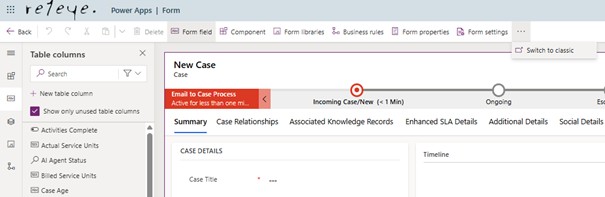
Note: While modern form editors allow embedding Canvas Apps, they do not automatically enable form context integration. To access “the ModelDrivenFormIntegration component”, the classic form designer must be used as described below.
Step 1: Create the Canvas App.
Create the Canvas App which you want to include on a form in your Model-Driven application. The Canvas App can be created either in a new or existing solution.
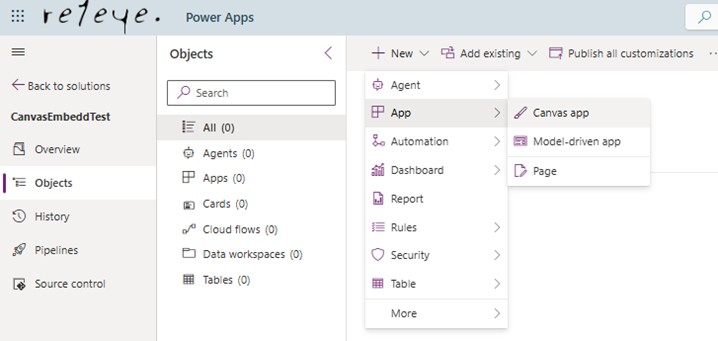
Step 2: Save the Canvas App logical name & App ID
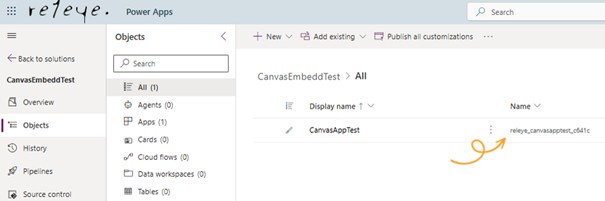
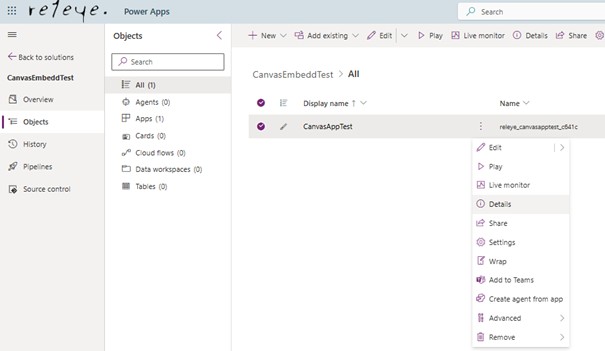
When the Canvas App has been saved, it will generate a logical solution name and an APP ID. Save these values down as they will be required later.
The logical solution name for the Canvas Application can be found within the solution:
The App ID (App GUID) is also available within the solution, under the Canvas App “Details”:
Step 3: Open the relevant form with classic designer
Now it is time to embed the Canvas App to a Model-Driven form. To achieve this, open the form where you would like to embed the Canvas App using the classic designer.
Step 4: Add Option-set field and PCF control
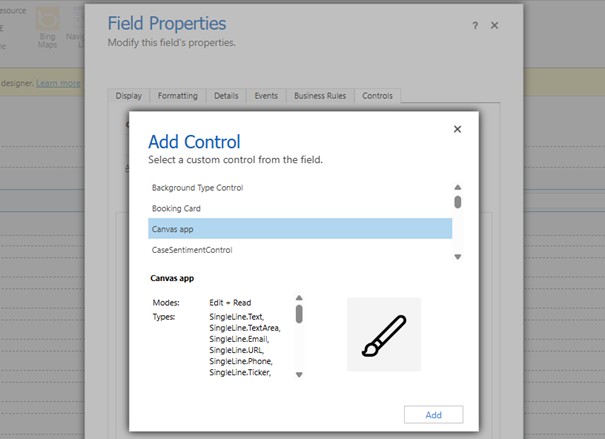
Create a tab and/or section where the Canvas App should be placed on the form. In the new section, add any unused Option-set field. If there are no unused Option-set fields available, a new one can be created in the table for this purpose.
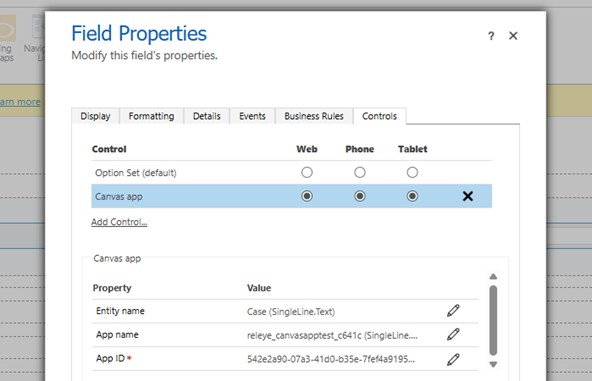
Double-click the added Option-set field to open the “Field Properties” and navigate to the last tab named “Controls”. Add the “Canvas app” control, which will only be available if the field is an Option-set.
In the “Property” section, update the “App name” and the “App ID” with the previously saved strings (step 2) by using “Bind to static values”.
Step 4: Save & Publish – Form & Canvas App
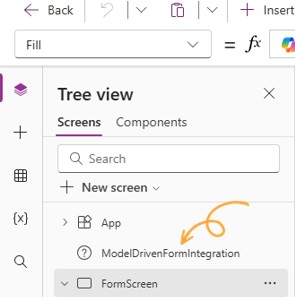
When the form is saved and all changes are published (Canvas App included), the Canvas App should now be successfully embedded on the form. If everything is done correctly, a new integration property named “ModelDrivenFormIntegration” should be automatically created within the Canvas App. This integration property is what allows the Canvas App to use the content of the record where it is run on the form from. This integration component cannot be added to a Canvas App manually.
Step 5: Finalize Canvas App with Form Integration features
Now all the prerequisites are met, and the Canvas App can be finalized using Model Driven Form Integrations. This form integration allows the Canvas App to retrieve information from the record of the form it is run from. Continue the read below for relevant use cases where this feature is utilized to drive specific finance and banking processes.
Use case 1: Know Your Customer (KYC)
A bank onboards private customers through a regulated KYC process.
KYC is part of a broader customer onboarding flow, managed from the Case table using cases of type Onboarding.
Onboarding agents need:
- A fast, guided interface during customer calls
- Automatic storage of responses on Case and Account
- Full traceability for compliance and audit purposes
All responses are stored in structured Dataverse fields, ensuring:
- Auditability
- Reporting readiness
- Regulatory compliance
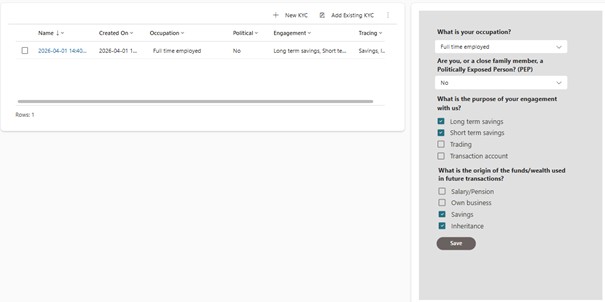
The embedded Canvas App is displayed in a new tab on the Case form. The available options in dropdowns and checkboxes are dynamically retrieved from a Dataverse table called KYC. Once the user completes the inputs and clicks Save, a KYC record is created and linked to both the Case and the related Account. The form refreshes automatically, and the newly created record is immediately shown in an adjacent sub-grid with a timestamp. All responses are stored in structured Dataverse fields and can be used for reporting and follow-up.
Use case 2: Credit Check
As part of onboarding as a new customer at a bank, customers must meet a minimum credit score.
The credit scores are fetched from a third party integration using the customer’s Social Security Number. The integration returns the credit score and for customers who are not qualified, the onboarding case needs to be automatically inactivated.
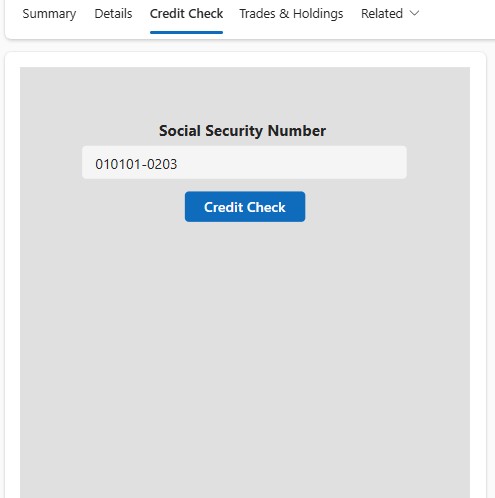
Solution Architecture
- This embedded Canvas App is included on the Case form in a new tab using the previous instructions.
- The Social Security Number input required is automatically populated based on Account SSN.
- When a user presses the “Credit Check” button:
- The Social Security Number is sent to an external provider for credit scoring
- The credit score is evaluated
- The UI responds dynamically:
- ✅ Qualified
- ❌ Not Qualified
If the customer is not qualified:
- The onboarding Case is automatically inactivated
- No manual follow-up or risk of process deviation
This ensures consistent enforcement of business rules and reduces operational risk.

Why Releye?
At Releye, we help banks and financial institutions adapt Microsoft Dynamics 365 to real business needs – balancing compliance, efficiency, and user experience.
From onboarding to case management, we design solutions that simplify complex processes like KYC and Credit Checks.
Curious how this could work in your organization?
Get in touch with us to continue the conversation.
Kontakta oss idag
Mejla oss på info@releye.se